
Placer Intelligence (Pi) MCP
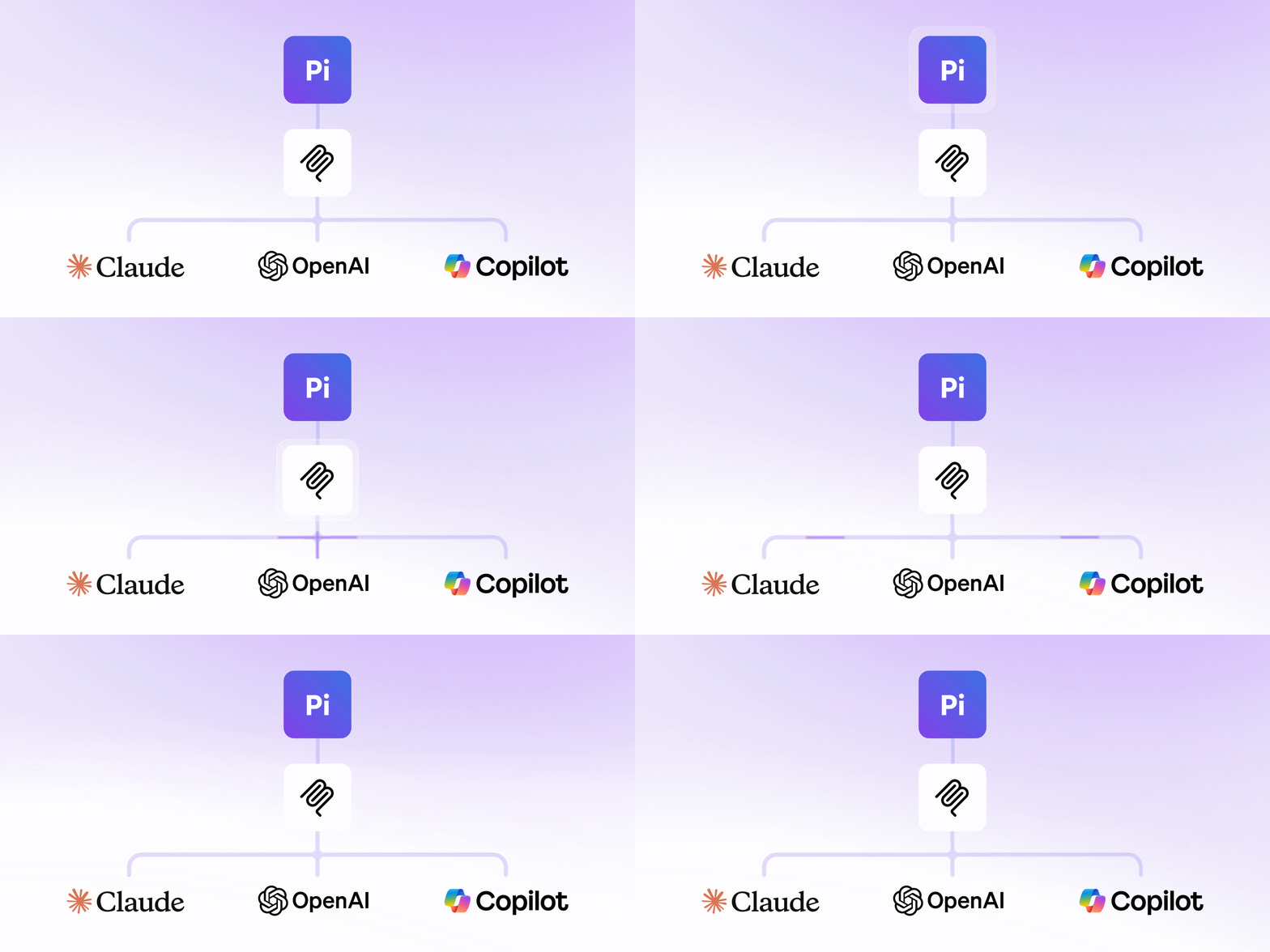
Connect your AI tools to Placer Intelligence (Pi) to turn your natural language conversations into location intelligence insights. The Placer MCP enables your assistant to run full Placer analyses--foot traffic, trade areas, visitor demographics and journeys, cross shopping, spend--and bring the answer back into your conversation with a link to the full analysis in the Pi platform. Ask Pi directly from Claude, ChatGPT, and other AI assistants that speaks the Model Context Protocol to speed your location intelligence analysis within your own workflows.
Placer MCP is an enterprise feature and must be enabled per account to access. See Requirements section below.
Put Pi To Work For You
Pi answers business questions across multiple audiences:
| Audience | Example Questions |
|---|---|
| Retail & restaurant brands |
|
| Commercial Real Estate |
|
| Civic: Economic Development, Parks, Destination Marketing |
|
| Finance, advertising, consumer goods & consulting |
|
Pi is for location intelligence only. General web lookups, company facts, coding, math, and writing are outside its scope — your assistant should handle those itself.
Requirements
- A Placer.ai account with Pi enabled.
- The MCP access entitlement on your account. This is granted per account and is not included by default — reach out to your Placer representative to discuss.
- An AI assistant that supports remote MCP servers over streamable HTTP with OAuth (Claude, ChatGPT, GitHub Copilot, Cursor, and others).
- Connection with your normal Placer credentials. Your account with the 3rd party LLM (such as Claude or ChatGPT) needs to be the same as the email you log in to Placer and Pi with.
Connecting Your Assistant
Server URL: https://pi.placer.ai/mcp
Transport: Streamable HTTP
Authentication: OAuth 2.0 (Placer SSO)
Every host follows the same process: add the server URL, then complete the Placer sign-in that opens in your browser.
Claude (web and desktop)
Navigate to the Claude directory and click "Connect."
Sign in with your Placer credentials when prompted to connect Claude and Pi.
Claude Code
claude mcp add --transport http placer {{https://pi.placer.ai/mcp}}
Then run /mcp in Claude Code and choose Authenticate to complete the Placer sign-in.
ChatGPT
Navigate to the OpenAI store to connect to the Pi MCP
Microsoft Copilot
Connections to Microsoft Copilot to the Pi MCP server is done through a Copilot Studio agent. Please note that the plain M365 Copilot chat has no setting for adding an MCP server directly.
- Go to copilotstudio.microsoft.com, then create an agent or open an existing one.
- Open Tools → Add a tool → New tool → Model Context Protocol.
- Fill in the form:
- Server name and description: the model reads the description to decide when to call the tool, so be sure to make it as specific as possible so Copilot knows when you want it to interact with Pi.
- Server URL: https://pi.placer.ai/mcp. Copilot Studio only supports Streamable HTTP, not SSE.
- Authentication: choose OAuth 2.0 → Dynamic discovery. Copilot Studio then registers itself as a client (DCR) automatically. - Click Create, then create a connection and sign in through the authentication popup.
VS Code/GitHub Copilot
Add to .vscode/mcp.json (or run MCP: Add Server from the Command Palette):
{
  "servers": {
    "placer": {
      "type": "http",
      "url": "https://pi.placer.ai/mcp"
    }
  }
}
Start the server from the editor and complete the Placer sign-in when prompted.
How an analysis runs
Pi does extensive analytical work: it finds the right places, pulls the data, checks it, and writes the answer. A full analysis normally takes several minutes. Because of that, the connector is asynchronous:
- Your assistant calls ask_pi with your question. It returns immediately with a handle — conversation_id, message_id — and status: "working".
- Your assistant calls get_pi_result repeatedly. While Pi works, each call returns status: "working" plus the latest progress steps, so your assistant can tell you what Pi is doing.
- When Pi finishes, get_pi_result returns status: "done" with the written answer, any data-honesty notes, web sources if used, and a deep link into Pi.
Just ask your question to your assistant in natural language. The above flow is what your assistant does under the hood.
Follow-ups. Pass the previous conversation_id back to Pi and Pi reuses the data it has already pulled, so the numbers stay consistent and the follow-up is faster. Write follow-up questions in full — Pi does not remember the earlier wording.
Tools
Pi has two read-only tools. Pi analyzes and reports; the connector never creates, modifies, or deletes anything in your Placer account.
ask_pi — Ask Pi
ask_pi — Ask PiStarts an analysis and returns a handle to poll.
| Parameter | Description |
|---|---|
| question | The analytical question, in natural language. Up to 8,000 characters. |
| conversation_id | Optional. The id from a previous answer, to run a follow-up that reuses that analysis's data. Omit for a fresh analysis. |
Returns: status (working), conversation_id, message_id, poll_after_seconds, pi_deep_link.
get_pi_result — Get Pi Result
get_pi_result — Get Pi ResultCollects the answer from an analysis started by ask_pi.
| Parameter | Description |
|---|---|
| conversation_id | From the ask_pi response. |
| message_id | Optional. From the ask_pi response. Omit to read the conversation's most recent analysis. |
| progress_cursor | Optional. From the previous working response, so only new progress steps are returned. |
Returns while running: status (working), progress, progress_cursor, poll_after_seconds, pi_deep_link.
Returns when finished: status (done), narrative (Pi's written answer), analysis_notes (data-honesty caveats), sources (web sources cited, if any), pi_deep_link, conversation_id.
On failure: status (error) and a human-readable error message.
Limits
| Limit | Value |
|---|---|
| Question Length | 8,000 characters |
| Concurrent analyses per account | 3 |
| Maximum Analysis Time | 10 mins |
| Typical Analysis Time | 1-5 mins |
Analyses consume Pi credits from your account's balance, the same as analyses run in the Pi app.
Data and privacy
- Authentication is OAuth 2.0 against Placer SSO. The connector never asks for or stores your password, and access is revoked when your Placer account is.
- Authorization is enforced on every single tool call: your Placer identity, your account's entitlements, and your data permissions. If access is revoked, the next call is denied immediately.
- Read-only. Neither tool writes to Placer data.
- Conversations you start through the connector appear in your Pi history, so you can reopen any analysis in the Pi app via its deep link.
- Handling of personal data is governed by the Placer.ai Privacy Policy.
Troubleshooting
| What You see | What it Means | What To Do |
|---|---|---|
| "Your account is not enabled for Pi's MCP connector" | Your Placer account doesn't hold the MCP access entitlement. | Contact your Placer Represenatative. Retrying will not help. |
| "Authentication: missing or malformed Authorization header" | The host never completed the OAuth sign-in. | Disconnect and reconnect the connector, and complete the browser sign-in. |
| "Your Pi credits are exhausted." | The account's Pi credit balance is used up. | Contact your Placer Account Manager to top up your credits. |
| "Too many Pi analyses are already running for your account." | The account has more than 3 analyses in flight. | Wait for one to finish, then retry. |
For IT teams
For the streaming to work, your network needs to allow these two domains:
- pi.placer.ai (the app itself)
- dashboard-gateway.placer.ai (API and streaming)
Both are standard HTTPS on port 443. The streaming connection uses SSE (Server-Sent Events), which is a connect that stays open while the response from Pi streams in. Some corporate proxies or firewalls kill these type of long-lived connections and can create errors related to timeouts through the MCP connection.
Additionally, IT teams should also make sure the proxy isn't buffering or terminating idle HTTP connections to dashboard-gateway.placer.ai — SSE needs the connection to stay open for the
duration of the response in order to fully work.
Support
Reach out to your Placer representative (best), or use the Placer.ai contact form.